
Free · Online · 9 AI Image Tools
Free AI Photo Editor & Image Generator: restore, cartoonize, de-watermark — all in one place
Type a prompt to create new images, or repair old photos, turn photos into cartoons and 3D avatars, remove watermarks and sharpen blurry shots — no sign-up, completely free.
Free AI Image Tools
Click any tool to open its dedicated page. Free, no sign-up required.
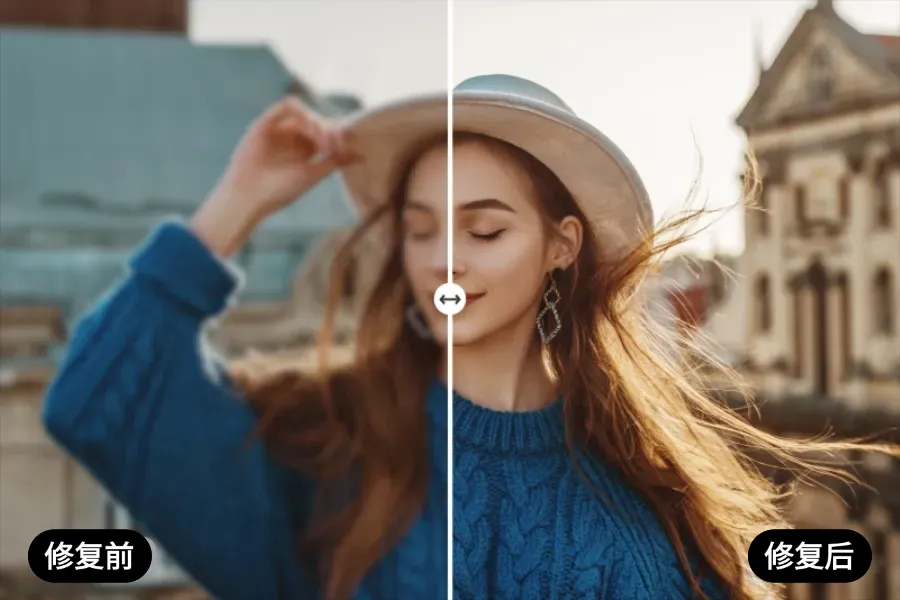
Generation result
ReadyWrite an idea on the left to start your next creation
Canvas 1:1Generated by the image service. This site does not create accounts or store server-side user records.
Recent creations
History stays in this browser and is not uploaded to the server.
No generated images yet. New results are saved in this browser.
Guides and tutorials
From prompt writing to old photo restoration and photo-to-cartoon — hands-on guides you can follow step by step.
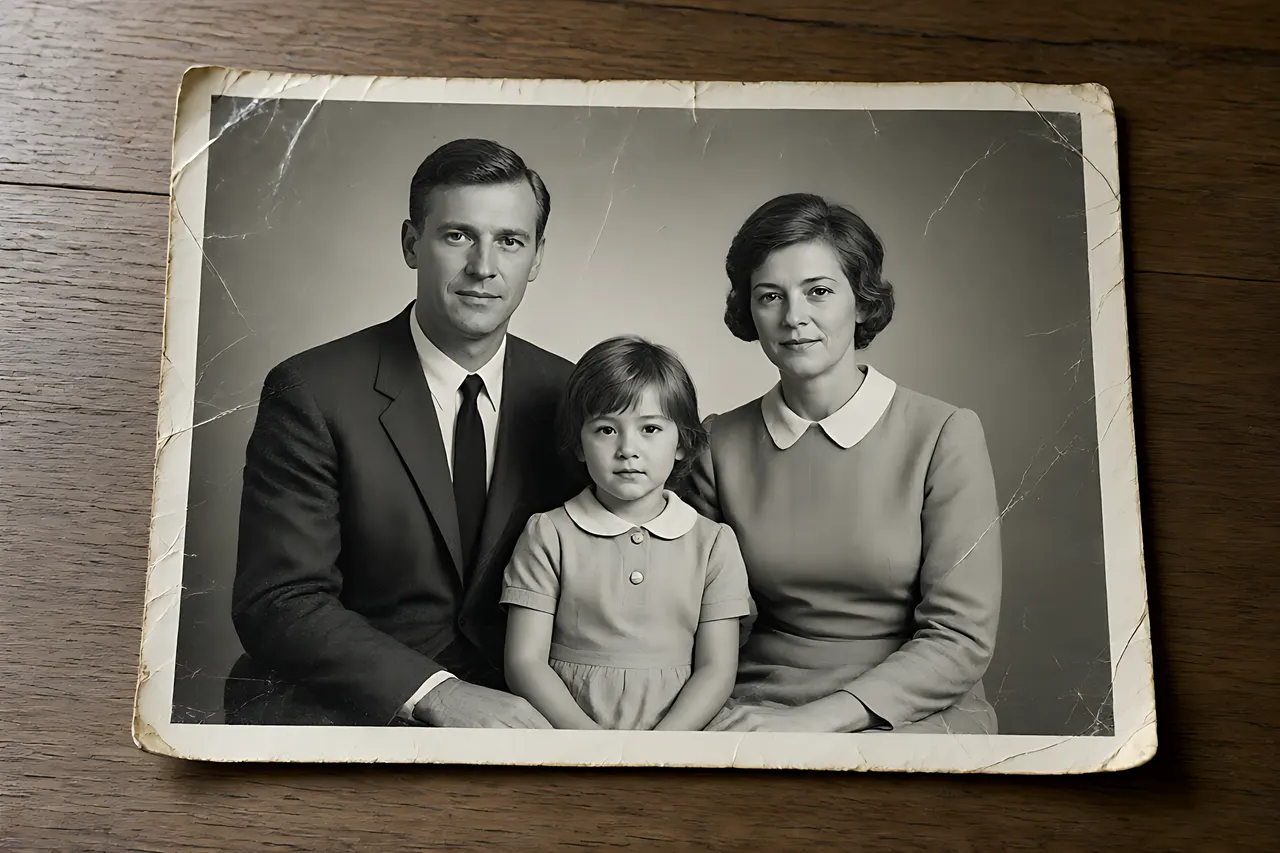
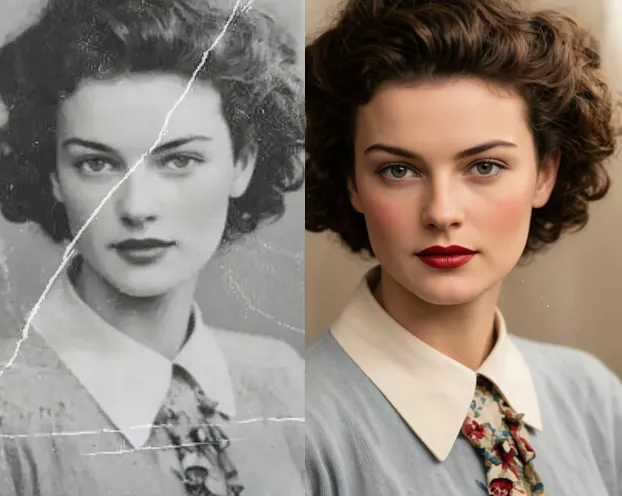
Old Photo Repair: Should You Restore, Colorize, or Upscale First? A 20-Photo Test
The same damaged old photo can look completely different depending on the order you process it. I ran 20 real family photos through all six possible orders of repair, colorizing and upscaling to find the right workflow, explain why the wrong order amplifies scratches, and compare scanning with phone snapshots.
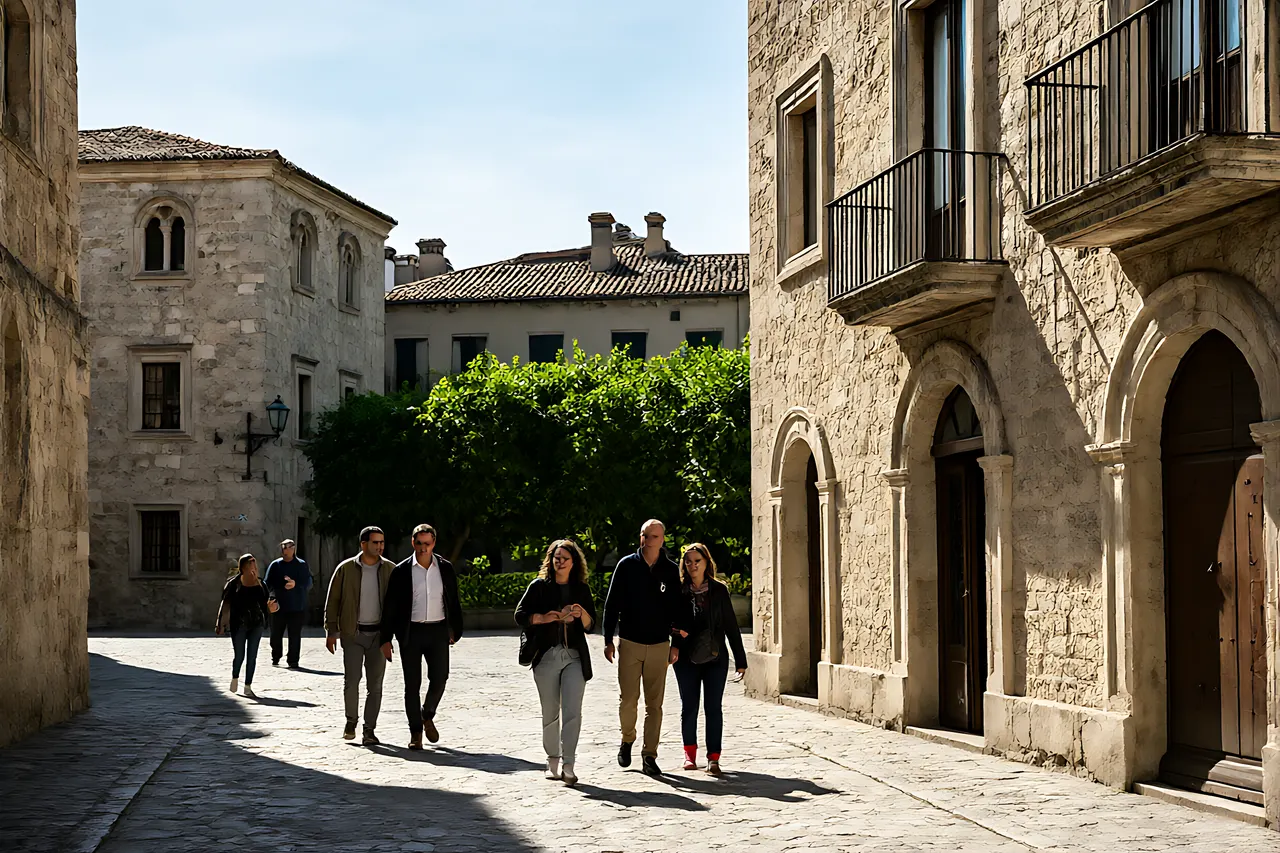
Remove Unwanted Objects From Photos: Watermark Remover vs AI Photo Editor vs Inpainting
One travel photo, three things to erase: a passerby, a date stamp and overhead wires. The three tools produced very different results. I ran all of them on the same batch and built a decision table based on area and background complexity.
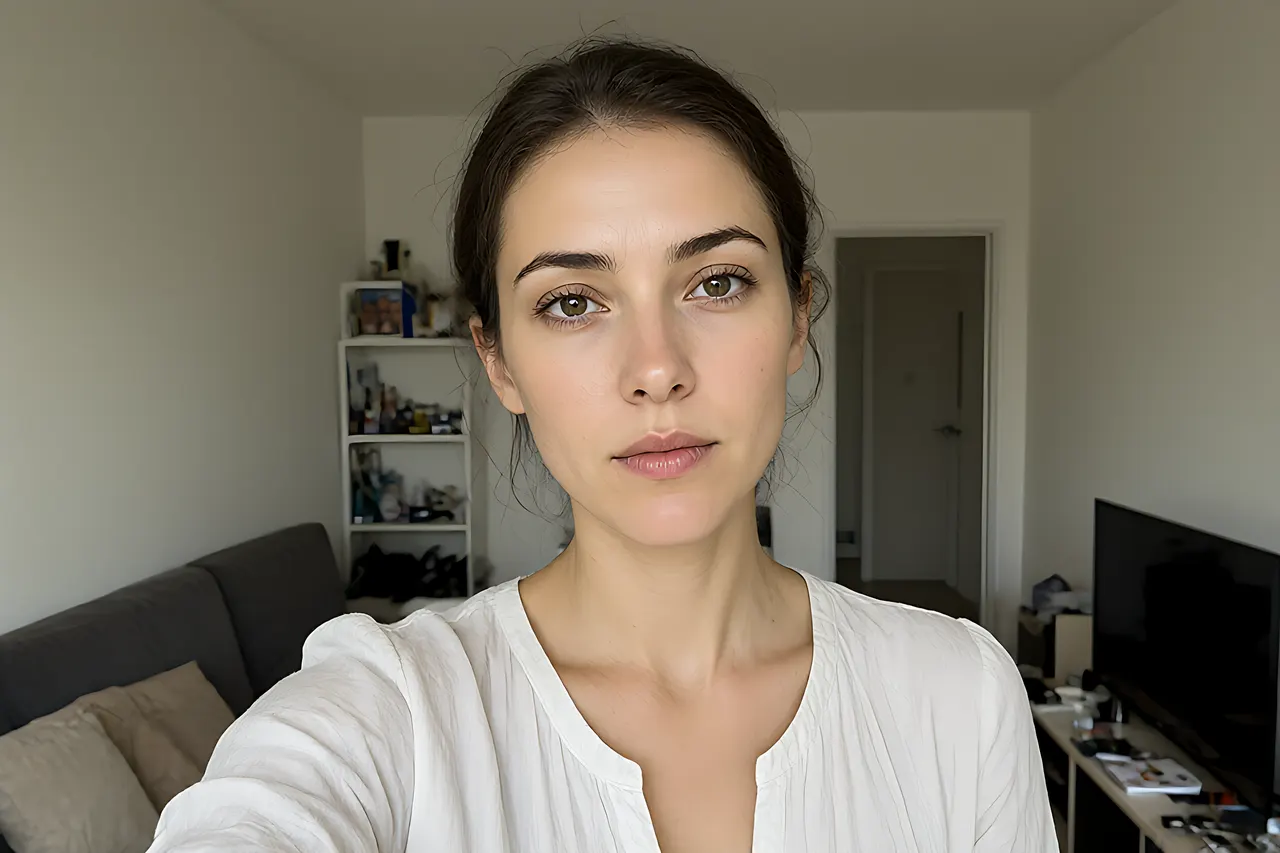
How to Make a Professional Headshot With AI (Without a Studio): Background, Light and Sharpness
Can an ordinary indoor selfie become a LinkedIn-ready headshot? I ran 12 selfies through a three-step flow — swap the background, fix the light, add a little sharpness — and documented the base-photo standard, how to choose among four backdrop colors, and the three tells that give AI away.
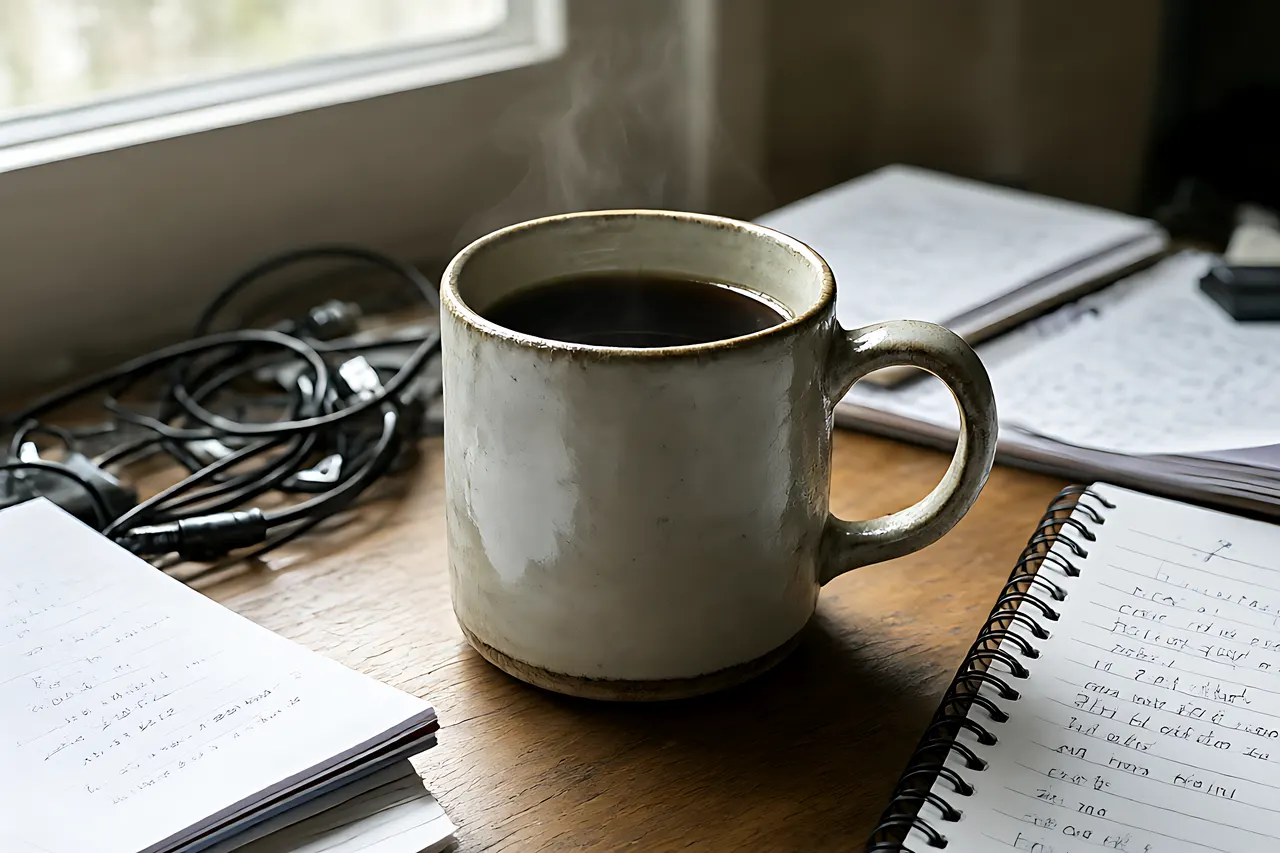
Product Photos Three Ways: White-Background Cutout vs AI Scene vs Full AI Generation
One ceramic mug, three routes, and only two produced images I would actually list. I ran white-background cutouts, AI scene replacement and fully generated imagery across the same products to compare cost, where the mismatch with the real item creeps in, and why glass and knitwear are trouble.
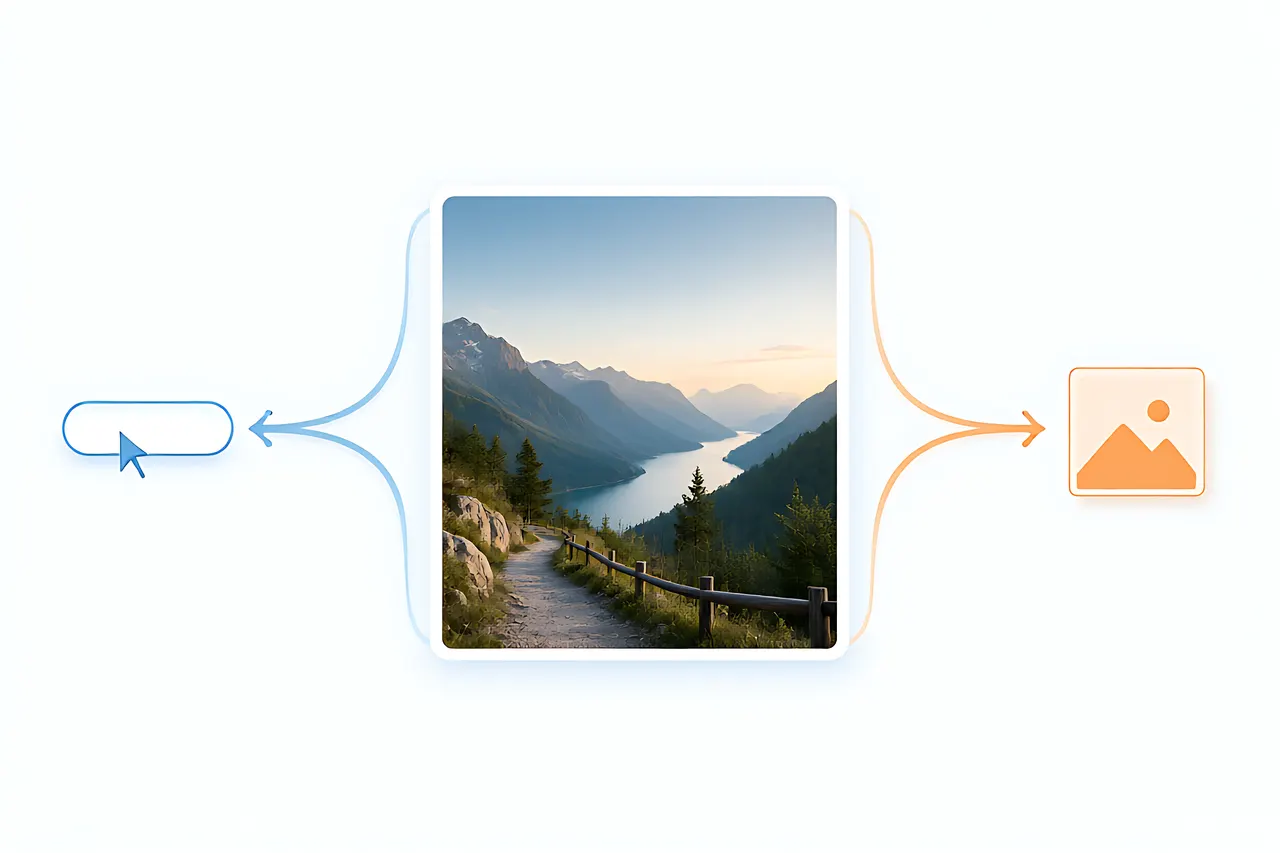
Text-to-Image vs Image-to-Image: When You Actually Need a Reference Photo
The same prompt, a corgi in a red scarf in the snow, produces completely different results depending on whether you start from words or from a photo. I ran 15 briefs through both routes and four strength settings to draw a clear line for when a reference image is mandatory.
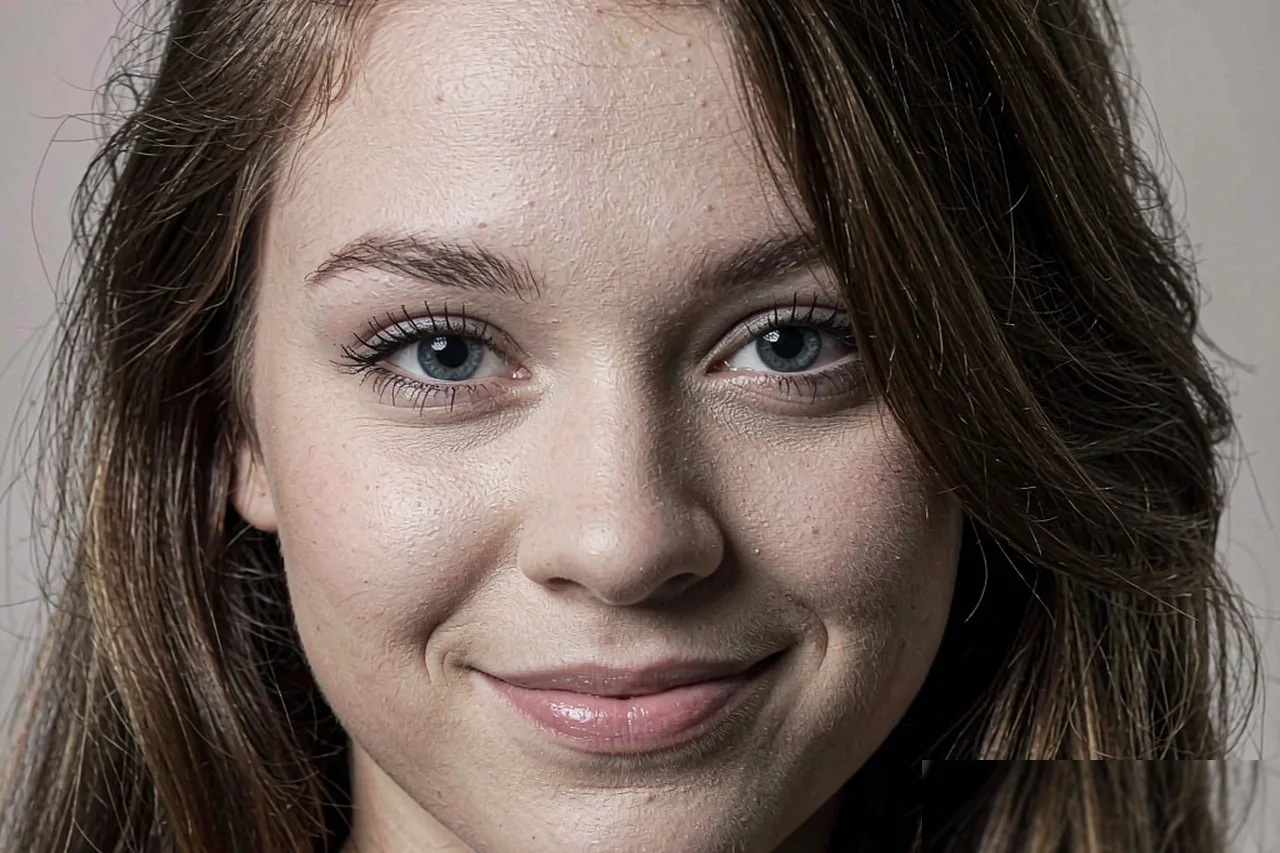
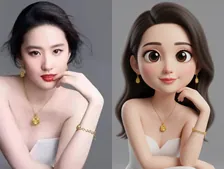
Turn a Photo Into Art: 3D Cartoon vs Sticker Portrait vs Illustration — Which AI Tool Should You Use?
Same face, three AI tools, three completely different results. A hands-on comparison of 3D cartoon, sticker portrait, and hand-drawn illustration styles: what each is for, which survives shrinking into an avatar, and how to choose without trial and error.
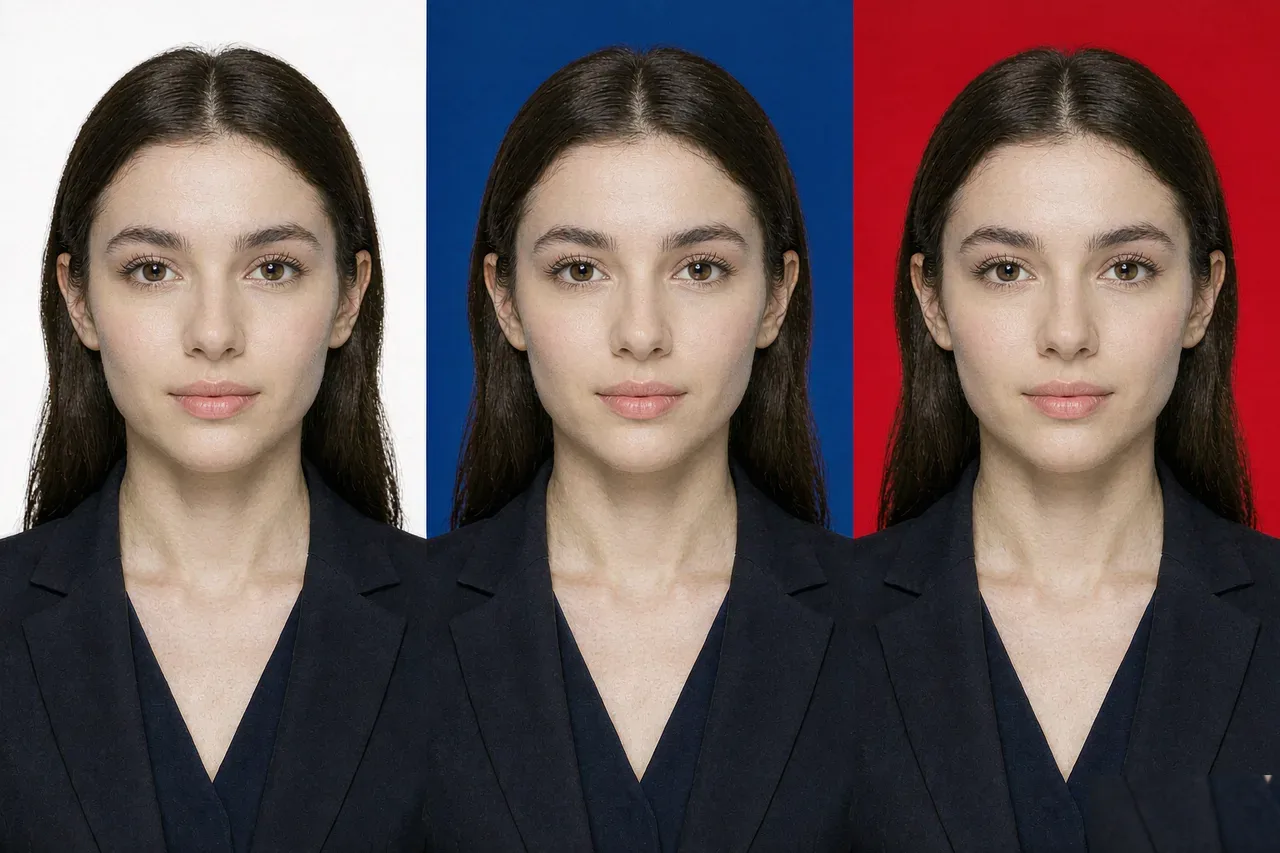
How to Change ID Photo Background Color with AI: Red, Blue & White in One Click
Passports want white, social security wants blue, exam registration wants red? I ran one selfie through the full background-swap workflow: cutout quality is the ceiling, and flyaway hair plus light-colored clothes are the two big traps.
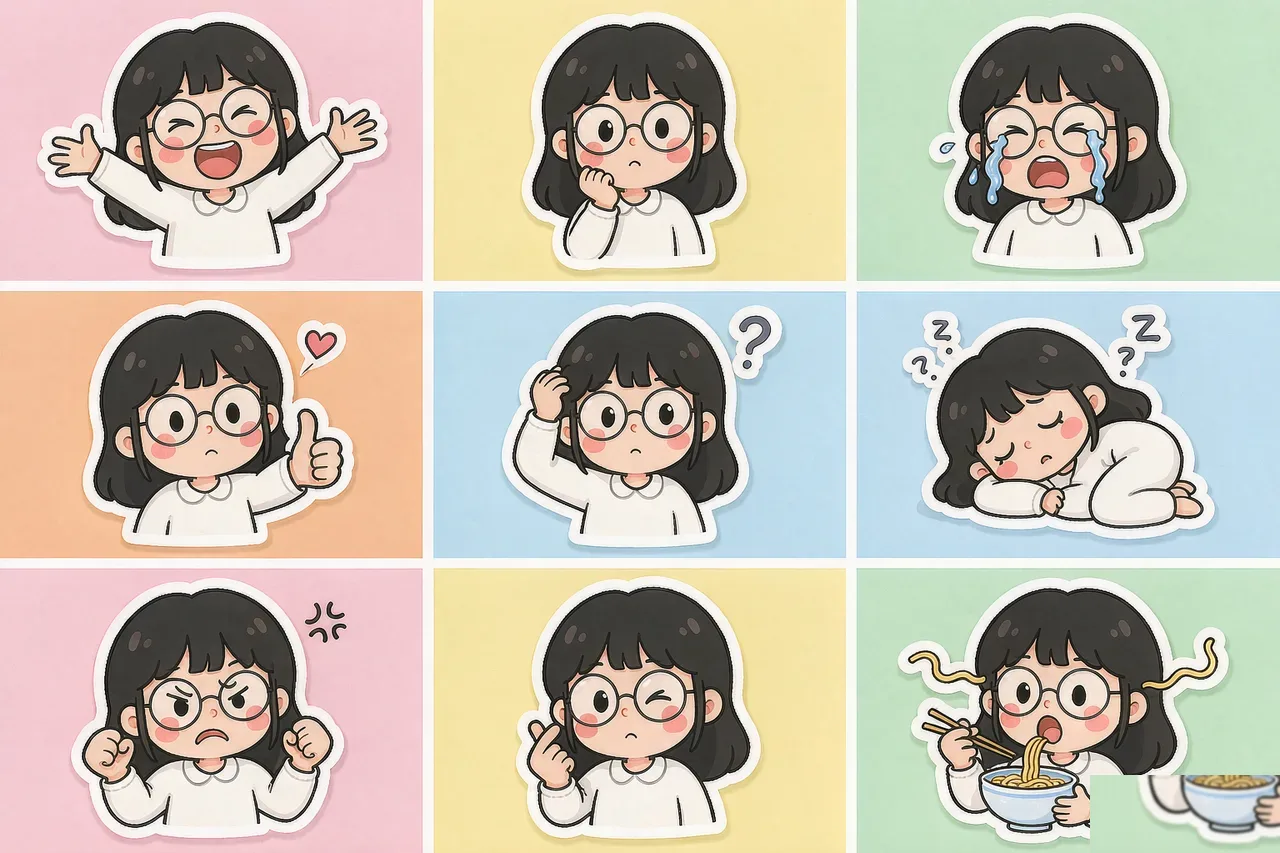
How to Make Your Own Sticker Pack with AI: A Step-by-Step Tutorial
I turned three of my most ordinary selfies into a nine-expression sticker pack: choosing the base photo matters more than writing prompts, expression variety comes from controlling one prompt at a time, and the final background removal plus white border is what makes it usable.
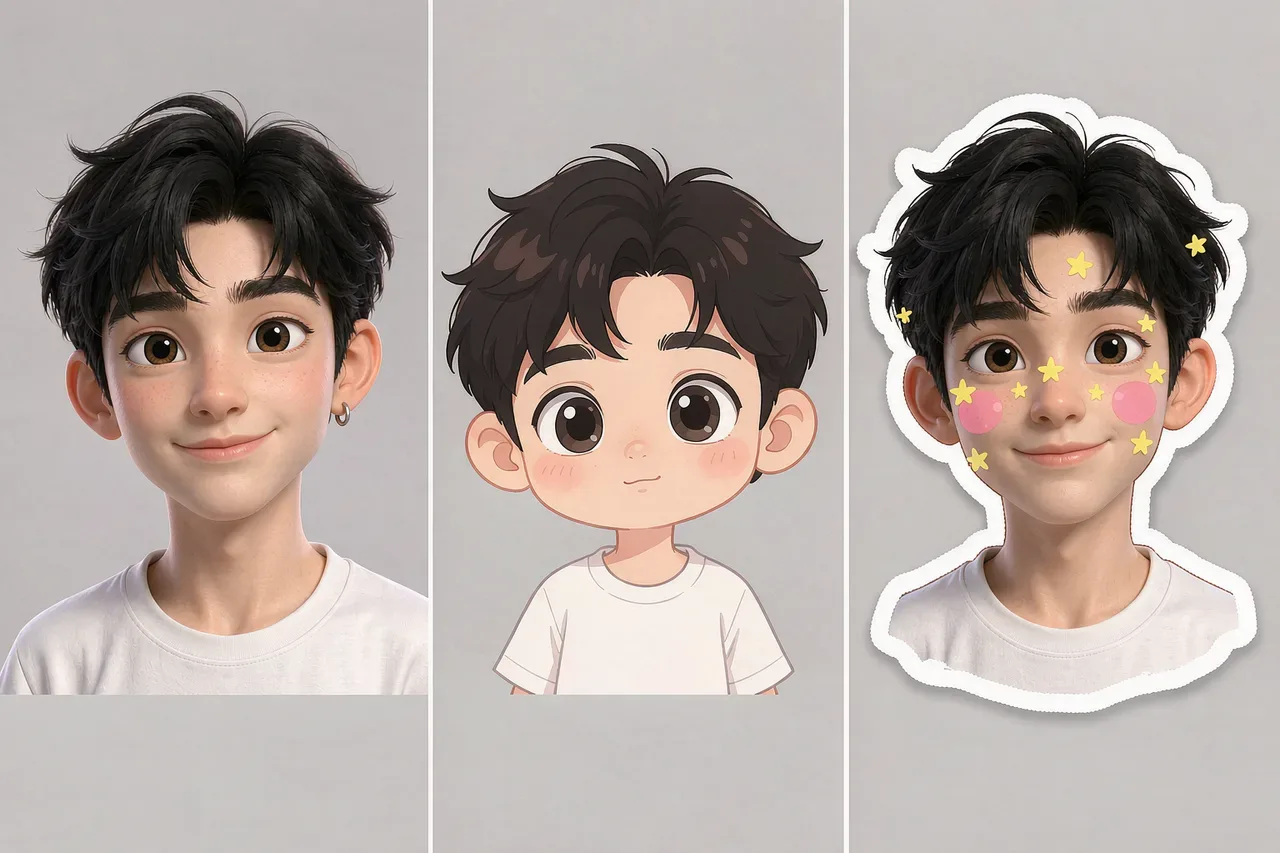
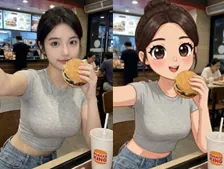
How to Make an AI Avatar: A Hands-On Comparison of 3D Cartoon, Chibi, and Sticker Styles
I ran the same selfie through three tools—3D cartoon, chibi cartoon, and sticker portrait. Similarity, best use cases, and failure modes are all different. Here's how to choose.
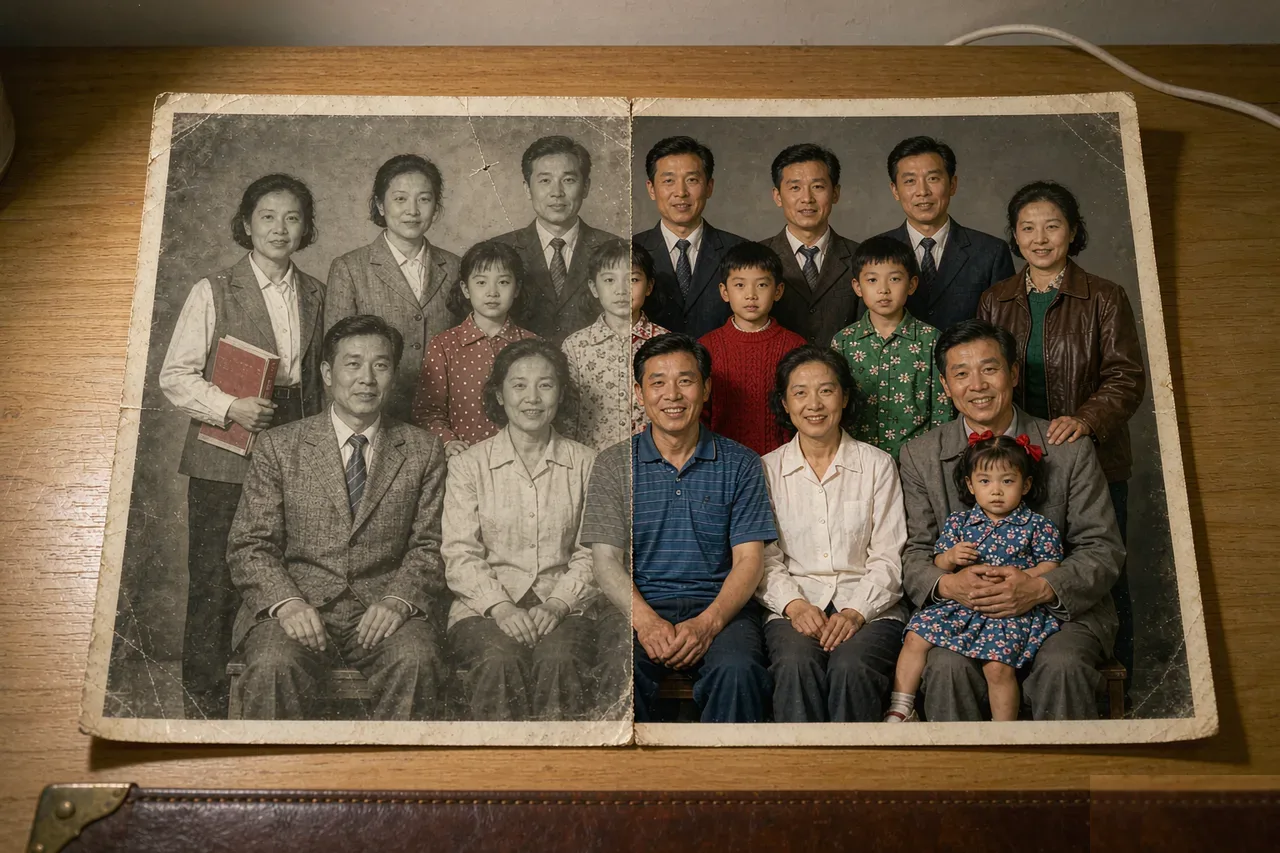
How to Colorize Black & White Old Photos with AI: A Real-World Test of 3 Color Styles
With one 1979 black-and-white family photo, I tested three colorization approaches—natural restoration, vivid cinematic, and seasonal mood. Skin tone differs the most; clothing color fails the most. Includes prompt patterns and the right order of operations.
How to Write Your First Usable AI Image Prompt: A Structured Approach for Beginners
Break your prompt into five layers—subject, style, lighting, camera, and image quality—and fill them in order. Includes a copy-paste template and the third layer most beginners overlook.
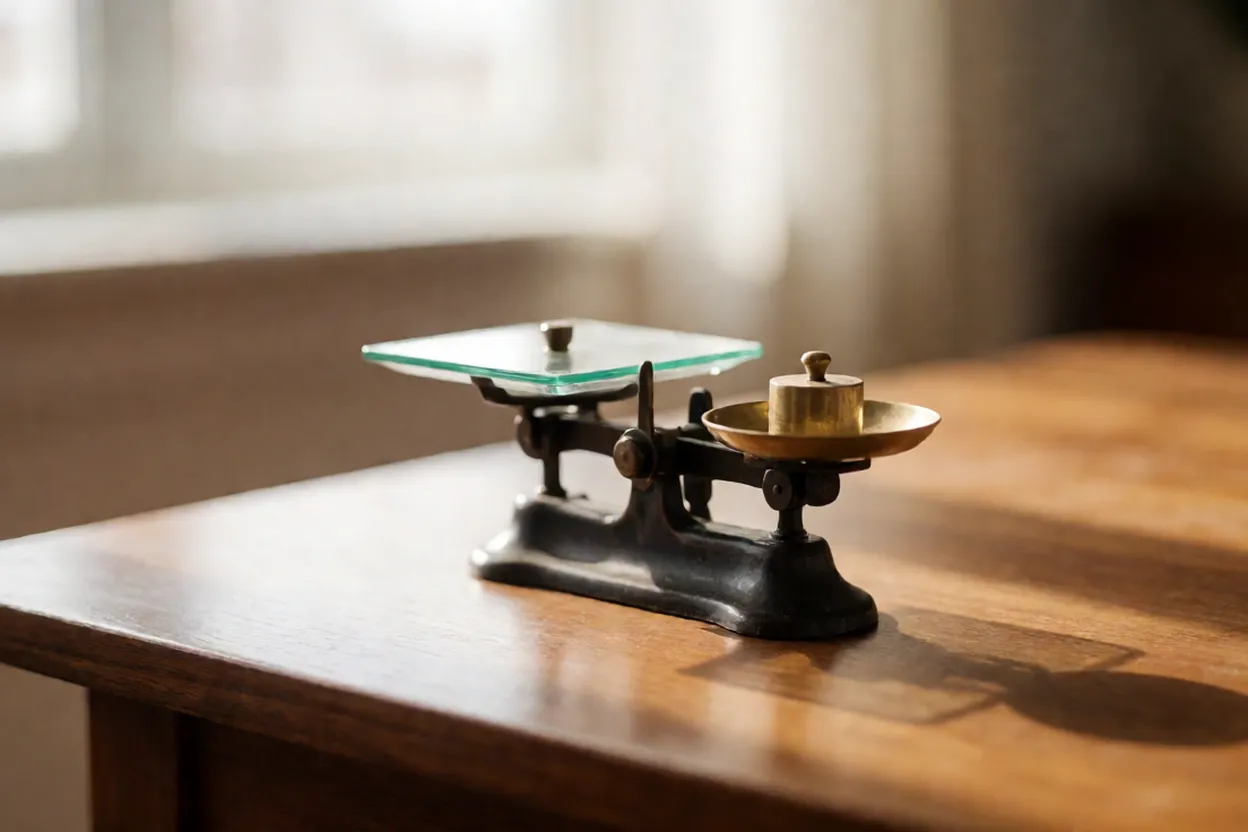
How to Make AI Focus on What Matters: A Practical Tutorial on Prompt Weights and Emphasis Syntax
What's the real difference between writing a word once versus emphasizing it three times? I ran 12 controlled tests to show you exactly where to apply weights and where they'll ruin your image.
Why use this free AI image generator
From a blank canvas to a finished image in seconds — stable results, flexible styles, watermark-free exports.
Completely free
No subscription, no credit limits — create as much as you want without paying.
Works in your browser
Open the page and start generating. Nothing to install, nothing to download.
No watermark
High-resolution downloads come without branding, so the result is ready to use.
AI powered
Driven by modern AI image models that understand natural language and image context.
Privacy friendly
Your images stay yours. Uploads are processed for generation, not reused.
Commercial use
Generated images can be used in personal and commercial projects.
Creators use it every day
“I turn rough prompt drafts into presentable concept images in minutes. The speed difference is obvious.”
Lena M. · Brand Designer
“Editing feels natural now — I describe the change and iterate fast, and the composition never breaks.”
Kai T. · Content Creator
“Style control is good enough for real moodboard work. It saves the team hours every week.”
Noah R. · Creative Director
Featured prompts from the library
12 curated style cases. Click any image to open the full prompt, gallery and step-by-step tutorial.
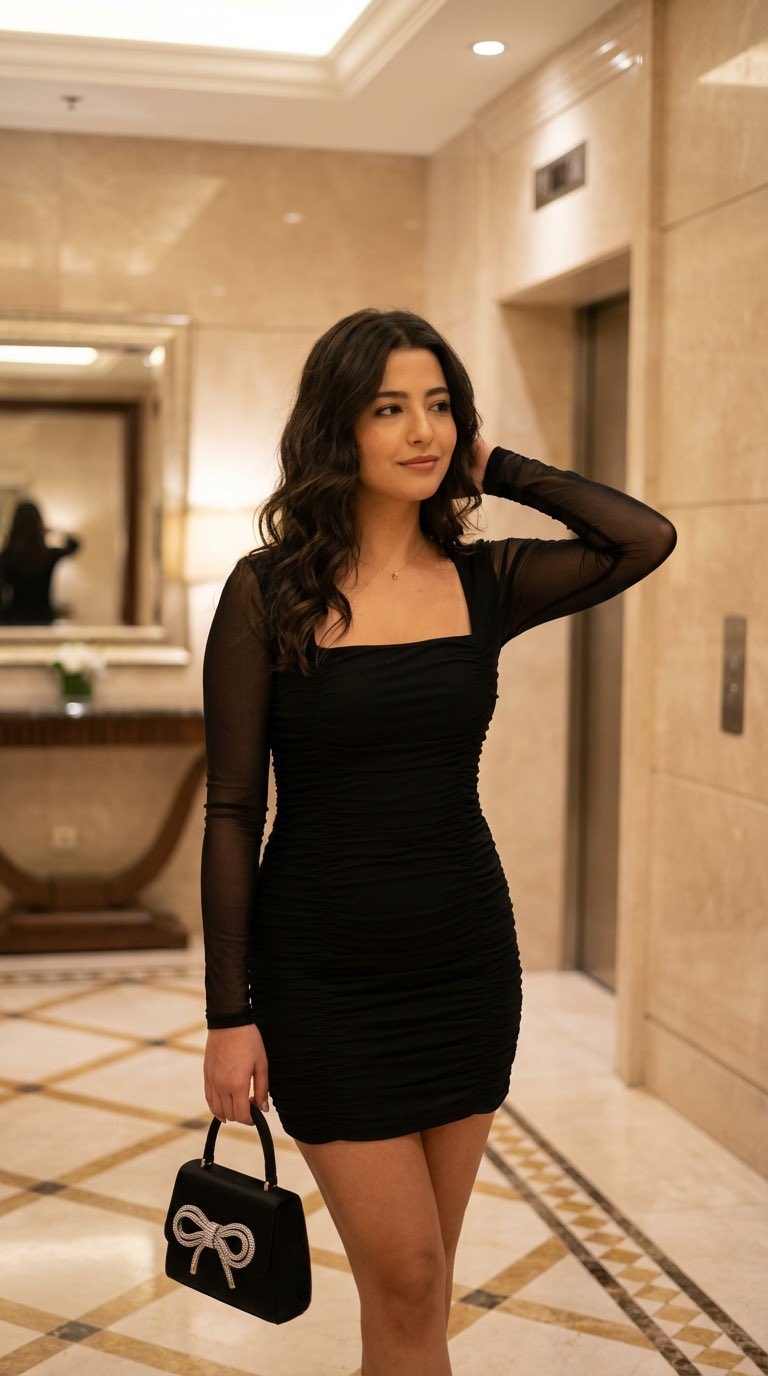 Minimalist Studio Portrait
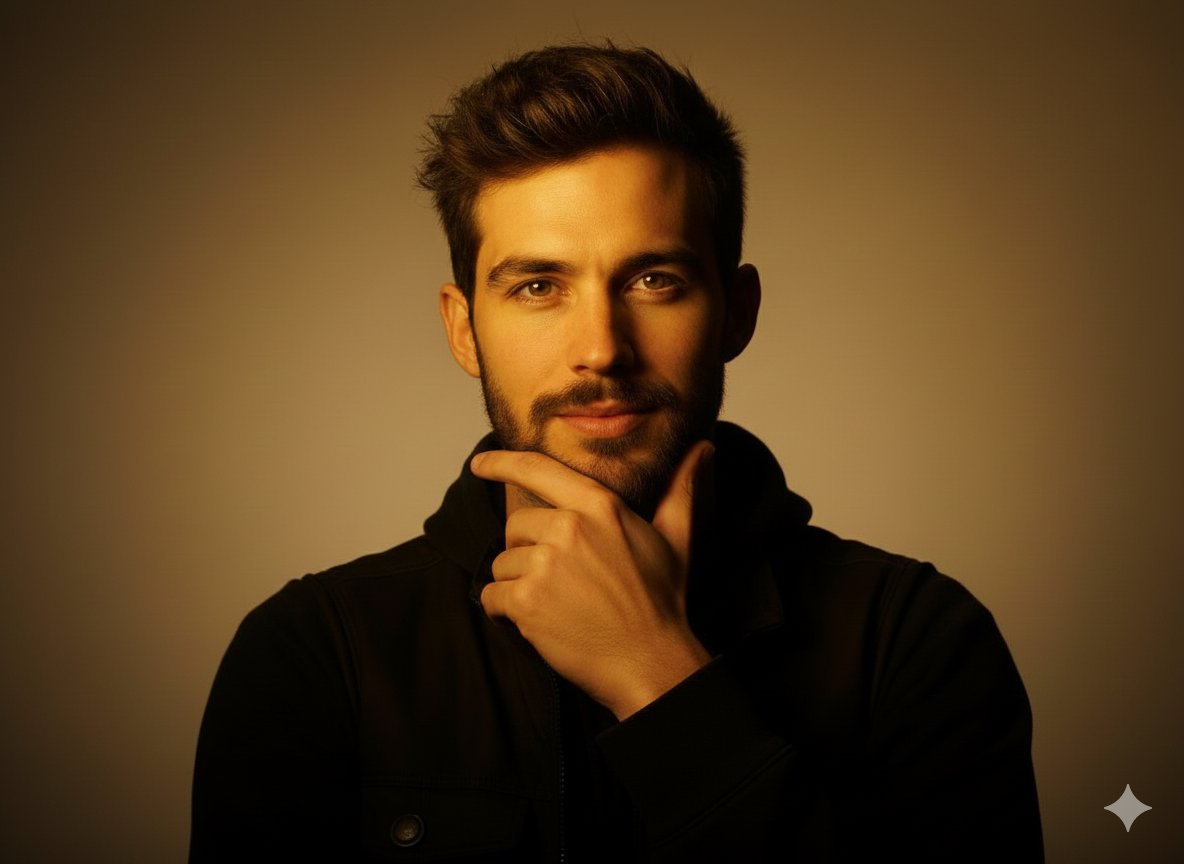 Golden Hour Portrait
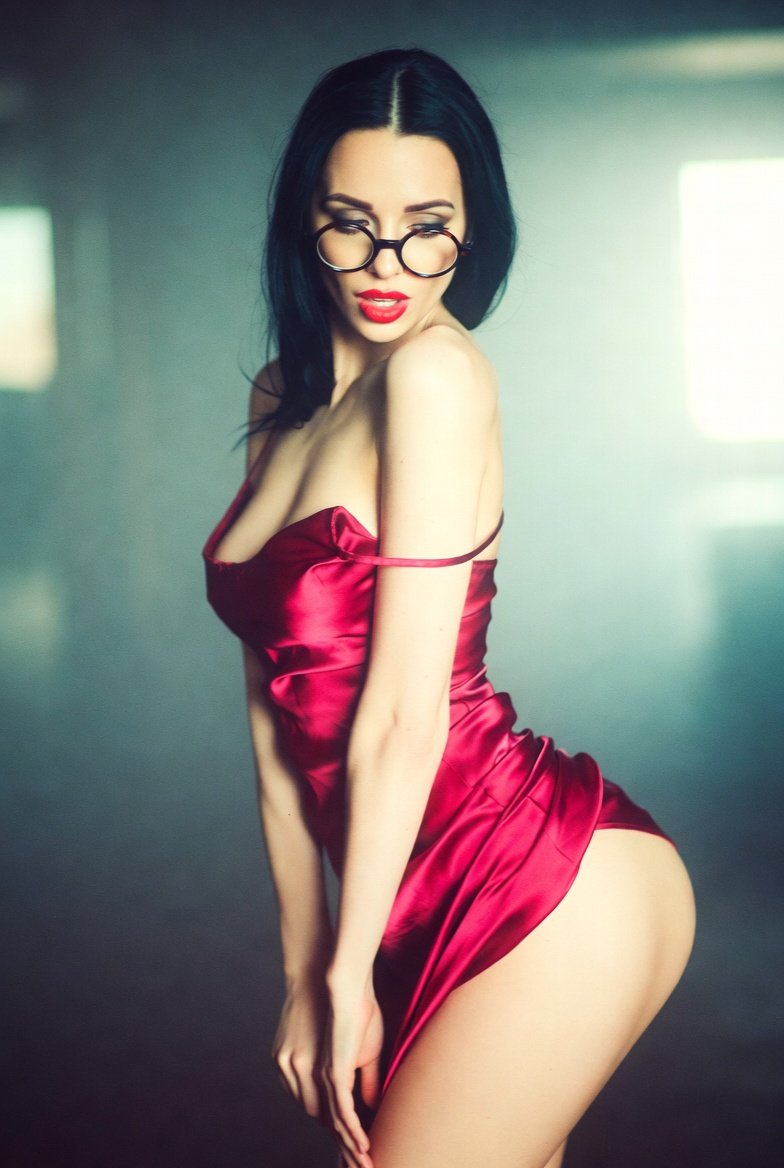 Glamorous Supermodel Photography
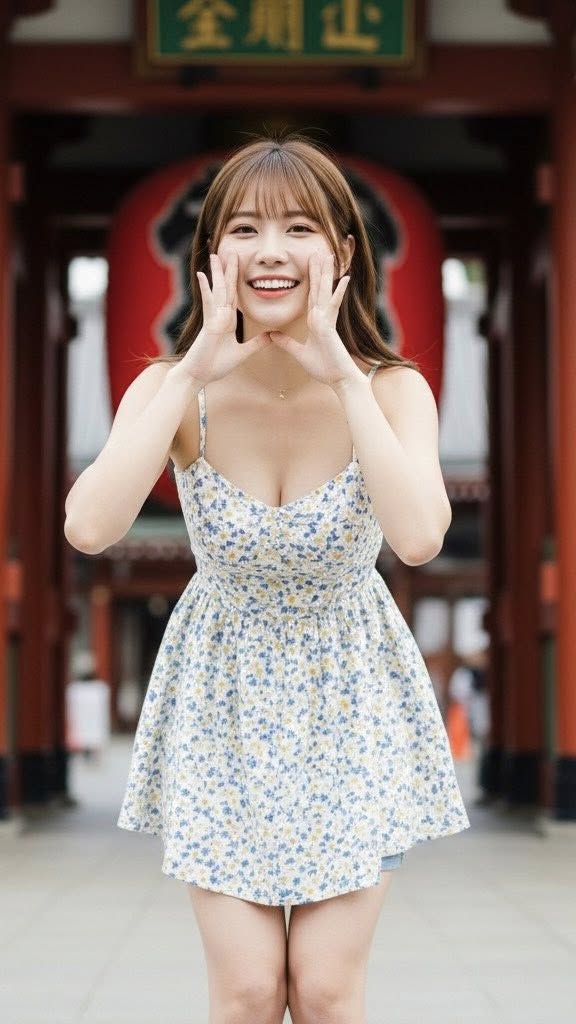 Sweet Calling Girl
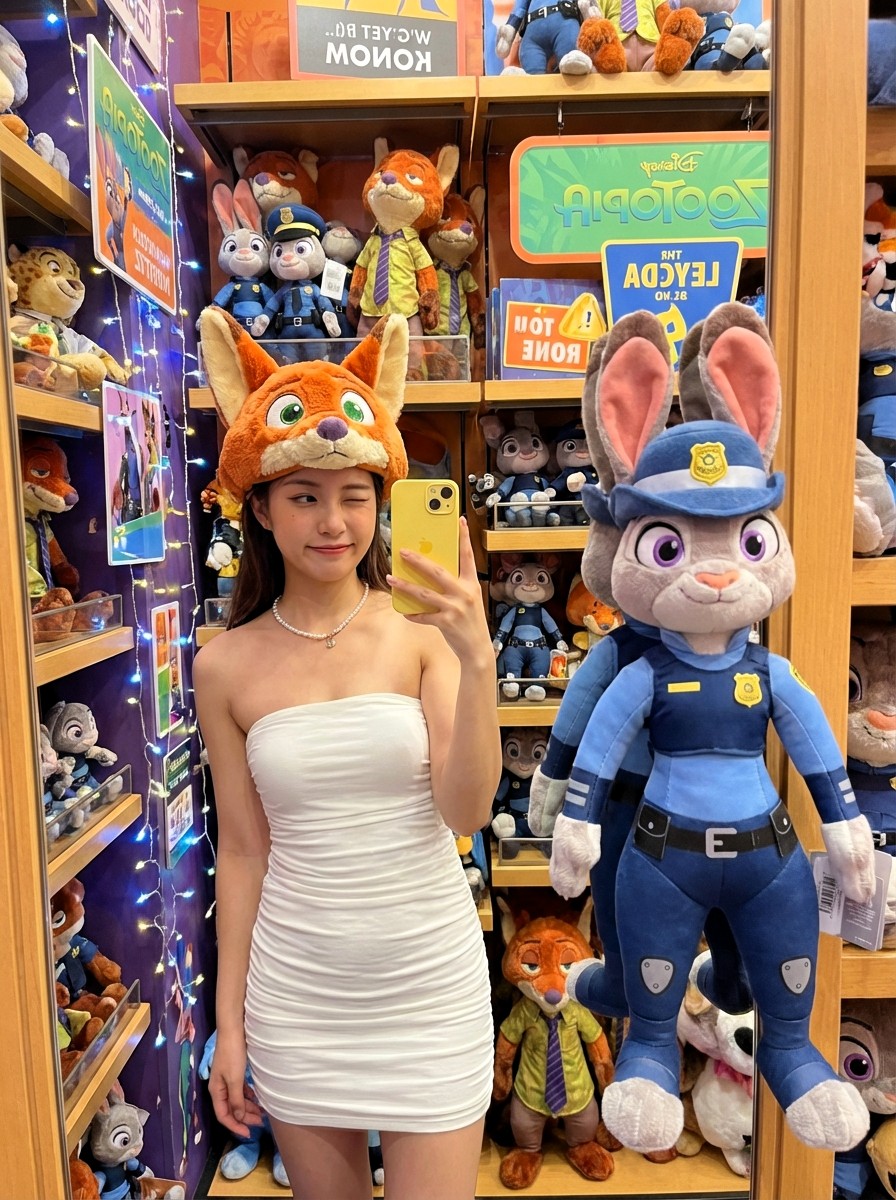 Disney Store Mirror Selfie
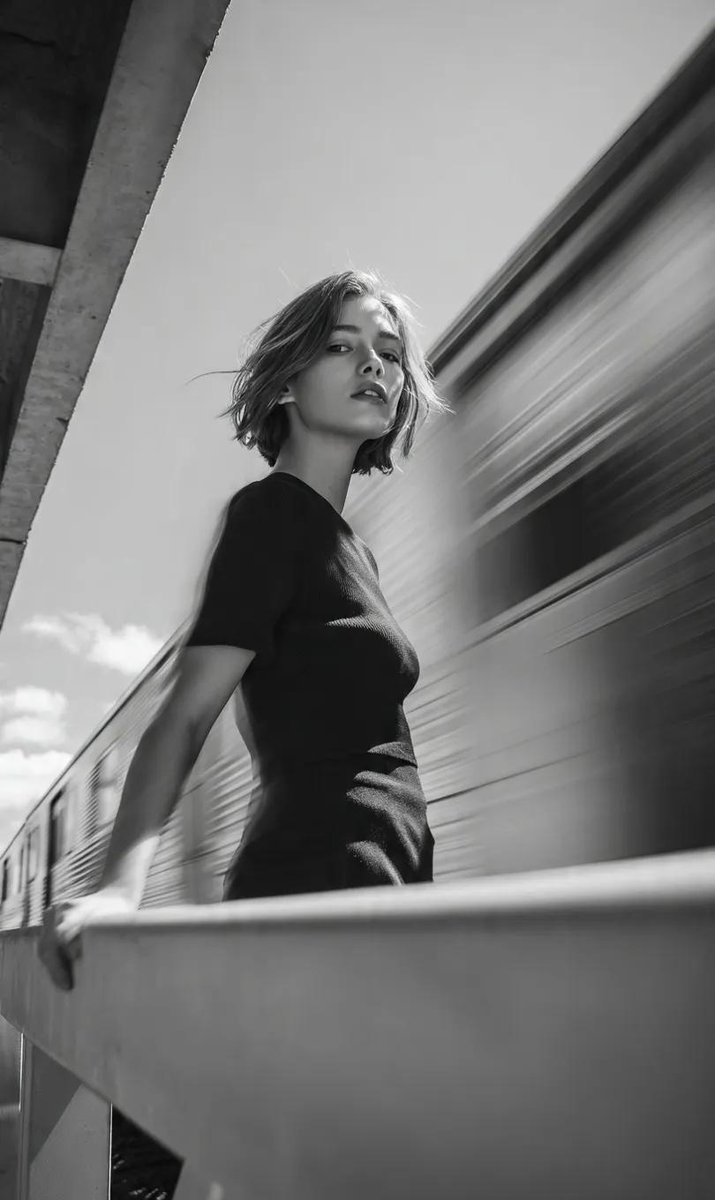 Subway Station Black and White Portrait
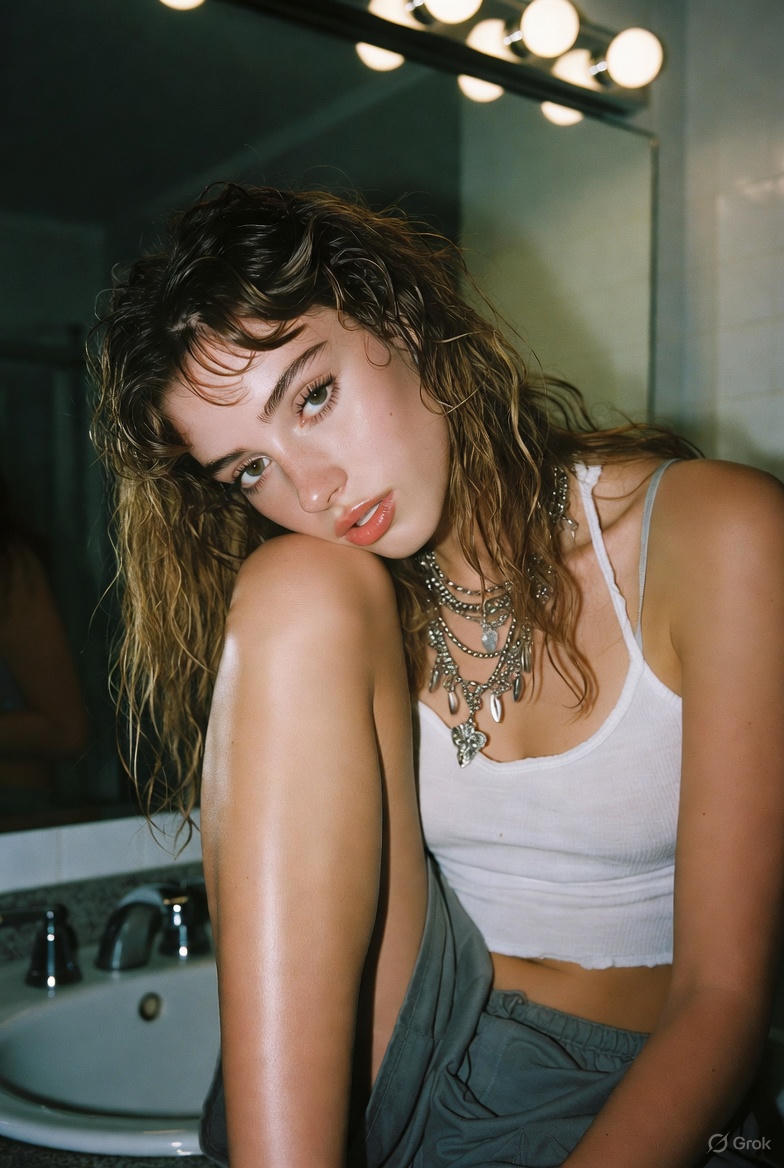 Modern Bathroom Contemplator
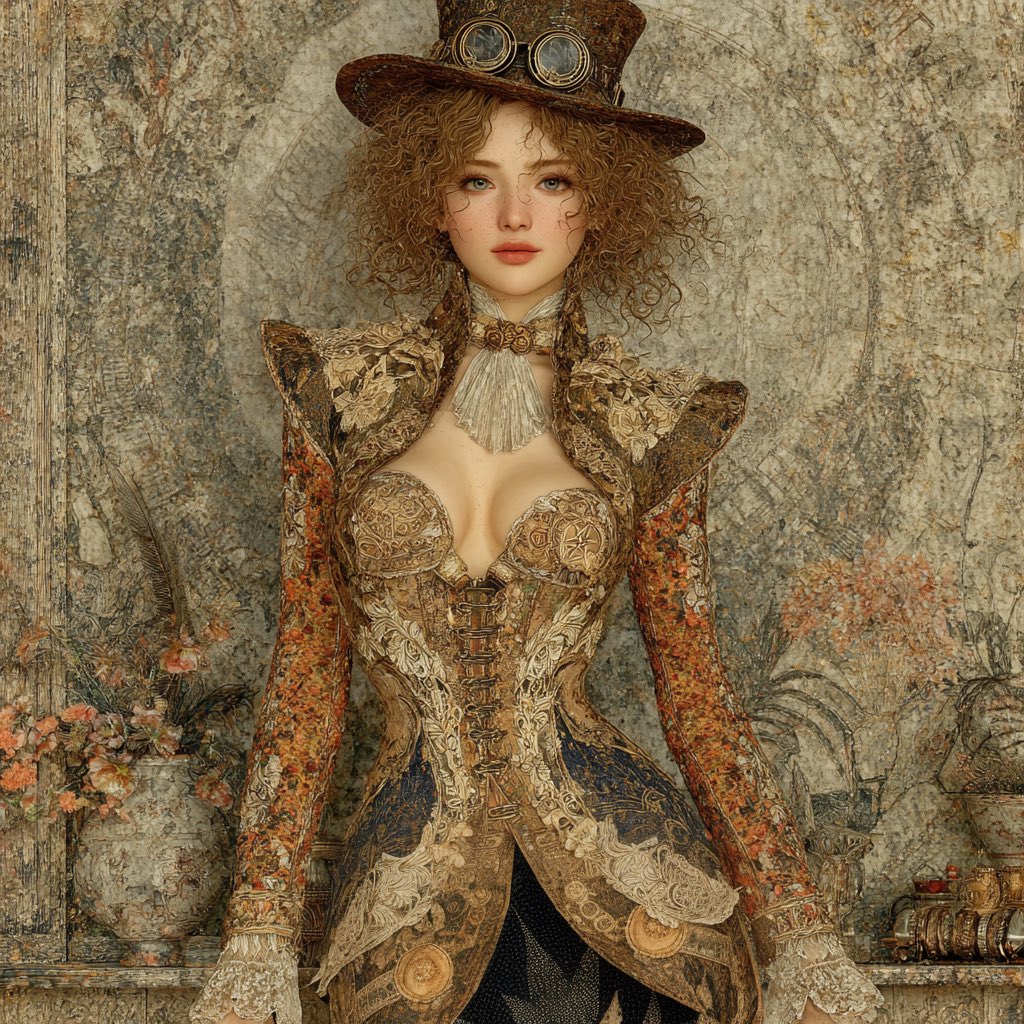 Steampunk Victorian Beauty
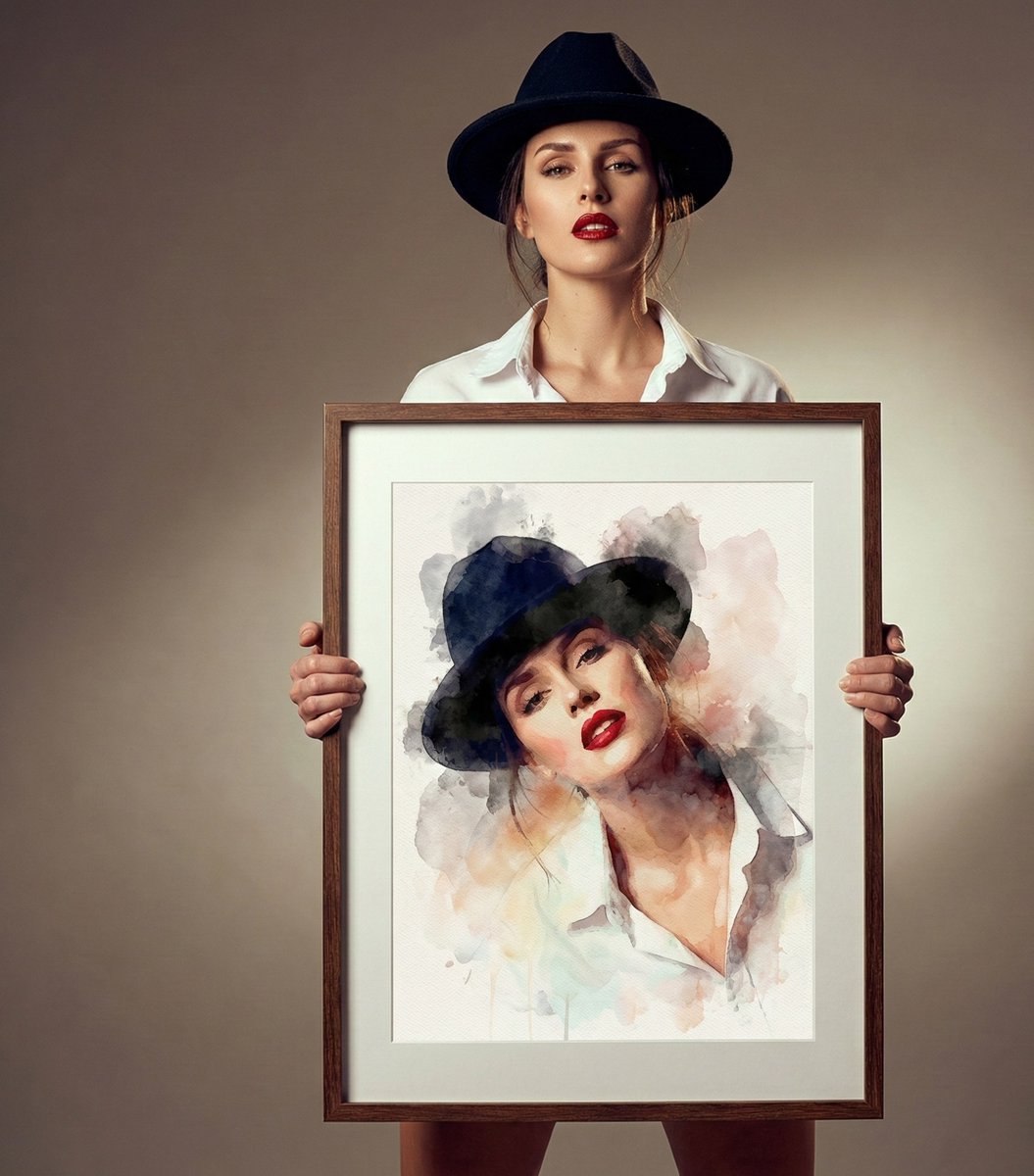 Fashionable Woman Watercolor Portrait
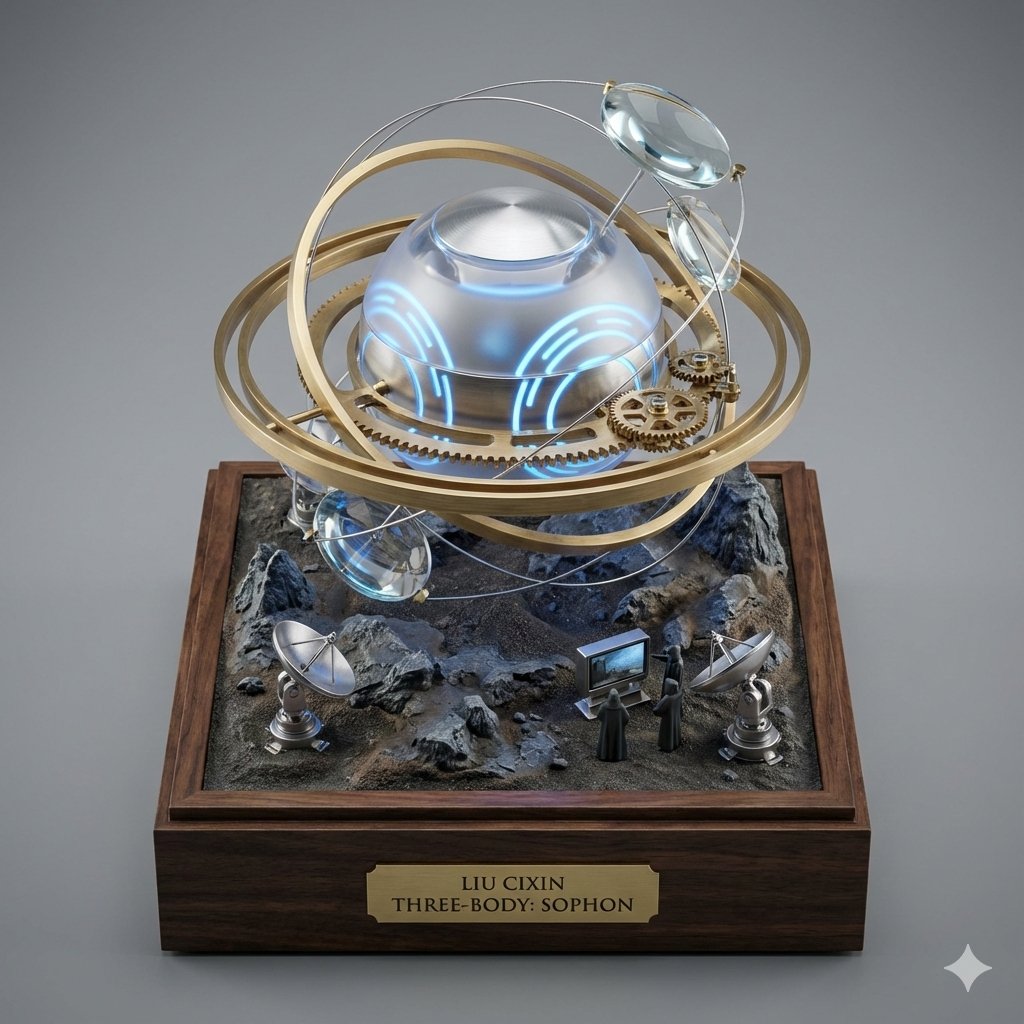 Sci-Fi Dynamic Sculpture
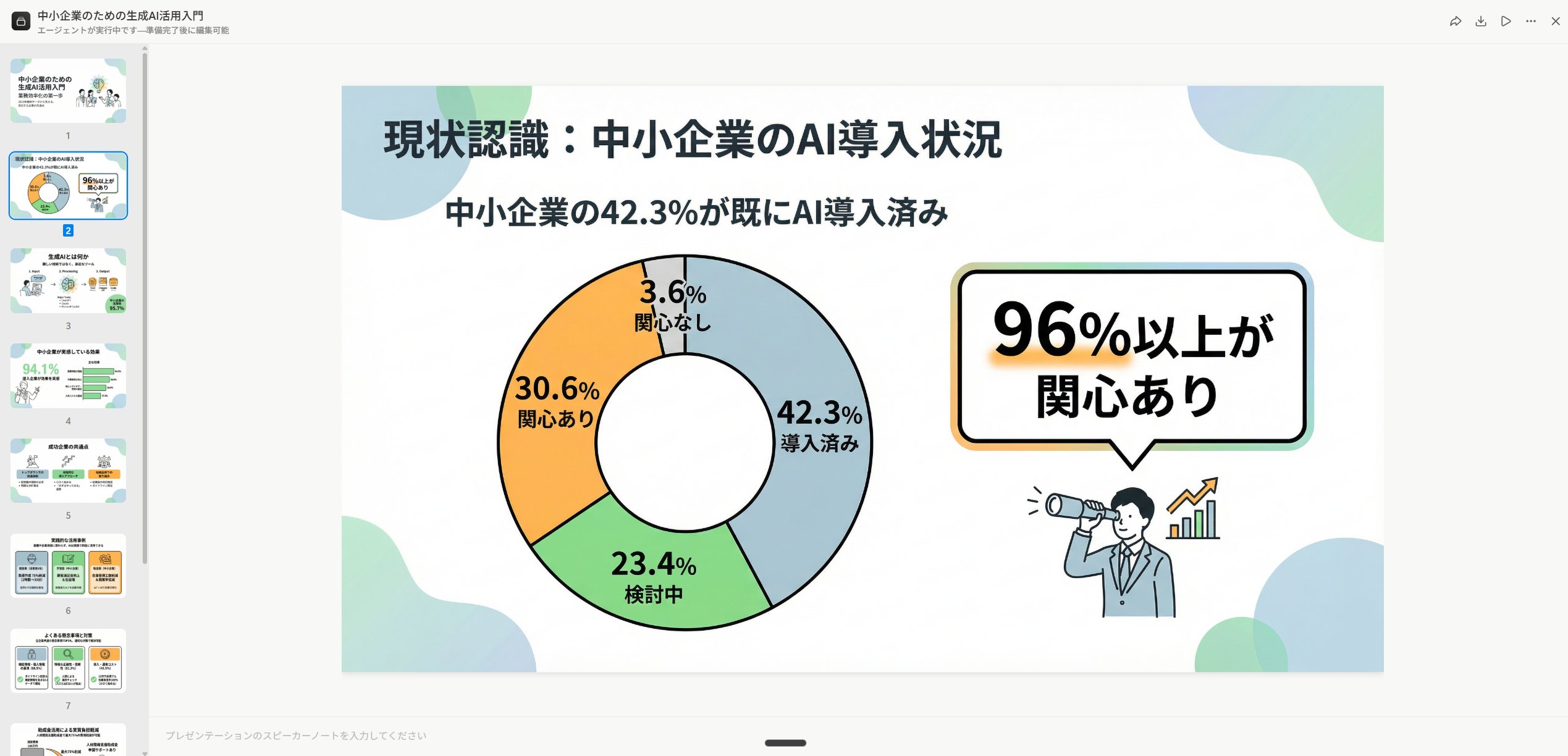 Flat Outline Slideshow Cover
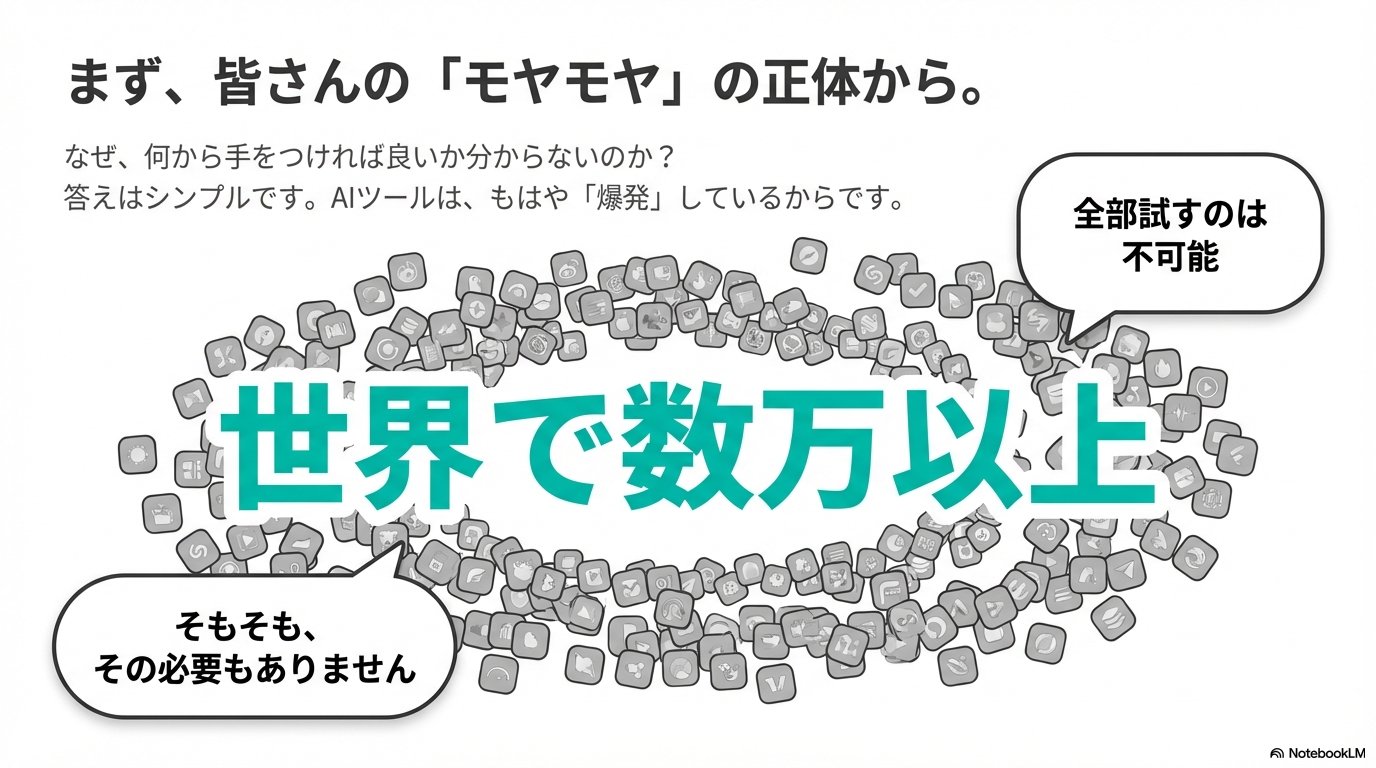 Three-Column Bullet Flat Slide
Frequently asked questions
Is this AI image generator really free?
Yes. Text to image, image to image and AI photo editing are all free to use, with no subscription and no watermark.
Do I need to sign up or install anything?
No. Just open the page in your browser — no installation, no login required to start.
Can I use the generated images commercially?
Yes, results can be used for both personal and commercial projects.
Does it support image-to-image?
Yes. Switch to Image to Image in the generator, upload a reference image, and restyle or remix it.
How long does one image take?
Usually a few seconds, depending on the model and current load.